Finding the exact video you’re looking for online can be surprisingly difficult. Maybe you only have a short clip, a screenshot, or a blurry frame from a movie or TikTok video. Traditional search engines often fail to locate the original source. That’s where video search engines and reverse video search tools come in. These platforms allow users to search videos using images, screenshots, video clips, or AI-powered recognition to identify the source, creator, or platform where the video appears.In this guide, we’ve compiled the best global video search engines, including powerful reverse video search techniques and AI-driven platforms. Whether you're a content creator, journalist, researcher, or casual viewer, these tools can help you quickly track down the original video.
Complete Video Search Engine Directory: Quick Overview
Below is a comprehensive table of video search engines available in 2026, categorized by their primary search method and use case.
| Tool Name | Primary Search Method | Key Features | Best For |
|---|---|---|---|
| Google Lens / Google Images | Screenshot/Image | Largest index, "exact matches" filter, mobile app | General users, finding video sources |
| Bing Visual Search | Screenshot/Image | Clean interface, integrates with Microsoft ecosystem | Alternative to Google |
| TinEye | Screenshot/Image | Filter by domain, track image usage over time | Copyright monitoring, source tracking |
| Yandex Images | Screenshot/Image | Strong algorithm for finding altered versions | Finding modified or lower-quality reposts |
| Berify | Screenshot/Keyframes | Searches Google, Bing, Yandex simultaneously, continuous monitoring | Content creators tracking stolen content |
| Peakto | Screenshot/Frame | Local media indexing, cross-app catalog search, AI similarity | Photographers, video editors finding masters |
| PlayPhrase.me | Text/Phrase | Find specific spoken phrases in movies/TV shows | Language learners, writers, meme creators |
| Cinesearch | Text/Emotion/Voice | 500+ streaming services, emotional/mood-based search, voice authentication | Finding movies/TV shows by feeling or scene |
| EnterpriseTube | Semantic + Visual + OCR | Object detection, on-screen text search, 40+ language transcription | Manufacturing, sales teams, internal video libraries |
| TwelveLabs | AI Video Understanding | Multi-modal API, video analysis, text generation from video | Developers building video search apps |
| Reverse Video Search App (Play Store) | Video/Image/URL/Voice | Upload video clips, frame extraction, search history | Mobile users, travelers identifying objects |
| NVIDIA VSS Blueprint | AI Video Analysis | Video summarization, Q&A, live stream support, action recognition | Developers, enterprises building custom solutions |
| Microsoft Azure AI Video Indexer | AI Video Analysis | Face detection, emotion recognition, transcription | Enterprise video management |
| Memories.ai | AI Visual Analysis | Object detection, automated tagging, security monitoring | Marketing teams, security applications |
| Dexa | Podcast/Transcript Search | Search expert podcasts, timestamped answers, verified sources | Researchers, podcast listeners |
| explore ai | Semantic YouTube Search | Context understanding, curated creator content | Finding specific moments in YouTube videos |
| Shutterstock |
Screenshots, Keywords | Commercial-grade visual search for stock footage. | Professional creators and marketers. |
| PimEyes |
Image | AI facial recognition | Finding videos with people |
| Kagi Video Search |
Keyword | Privacy-focused search | Privacy users |
| DuckDuckGo Video |
Keyword | Private video search | Privacy-focused browsing |
Top 8 Recommended Video Search Engines: Detailed Reviews
1.Google Images: The Universal Standard
The fact that Google has one of the best video search engines should not be surprising. Google excels at all types of searches, including those for videos. Along with other search choices like news and photos, Google Video Search is accessible through the search bar.
As of 2026, this tool has evolved significantly with the introduction of AI Mode (powered by Gemini), making it a multimodal powerhouse.
⏩How it Works
Google indexes video thumbnails from across the web. When you upload a screenshot (preferably one close to the original thumbnail), Google's algorithm analyzes colors, pixels, and patterns to find matches.
⏩What You Can Search
-
Screenshots or frames from movies, TV shows, or online videos
-
Thumbnails from social media videos
-
Clips from TikTok, Instagram Reels, or YouTube Shorts
-
Educational or news videos for fact-checking
-
Memes or GIFs that originated from video content
Example: Upload a screenshot of a viral TikTok dance → Google Images may show the original video on TikTok or YouTube.
⏩Key Features
| Feature | Description |
|---|---|
| Reverse Image Search | Identify videos and images similar to your uploaded screenshot. |
| Visual Matching AI | Google uses AI to detect visually similar content across the web. |
| Integration With Video Platforms | Often links to YouTube, Vimeo, and other video-hosting sites. |
| Filters & Tools | You can filter by size, color, type, time to refine search results. |
| Free to Use | No subscription or account required. |
⏩Subscription Fees
-
Google Images Video Search is completely free.
-
No premium or paid tier is required to access reverse image or video search features.
⏩Who Is It Best For?
-
The "Identify-This" User: People who see a clip on TikTok or Instagram and want to find the full-length original video.
-
Shoppers: Those who see a product in a video and want to find out where to buy it.
-
Fact-Checkers: Journalists and researchers using reverse search to verify if a video is real or a deepfake.
-
Content Creators: To see where their own videos are being embedded or shared across the internet.
2.Berify: Best for Reverse Video & Copyright
Berify is a dedicated reverse image and video search platform designed to help users locate where their video frames or images appear online. Unlike traditional keyword search tools, it uses a proprietary matching algorithm and multi‑engine search to trace content across major search engines and platforms.
Unlike general search engines like Google or Bing, Berify is a multi-engine crawler specifically designed to help people find where their images and videos are being used across the entire web.
⏩How it Works
Take a clean screenshot of a video frame (ideally one close to the thumbnail) and upload it to Berify. The tool scans multiple search engines and provides matches, with the ability to monitor these matches over time.
⏩What You Can Search
Berify lets you upload:
-
Screenshots from a video clip
-
Video frames or still images
-
Sitemaps or RSS feeds containing image/video references
-
Multiple uploads for batch searching
Once uploaded, Berify scans across hundreds of millions of indexed visuals to find exact or visually similar matches, even if the image was cropped, edited, or color‑adjusted.
⏩Key Features
| Feature | Description |
|---|---|
| Multi‑Engine Reverse Search | Combines results from Google, Bing, Yandex, and more for comprehensive coverage. |
| Exact & Partial Matching | Detects modified or edited versions of your image/video. |
| Video Thumbnail Detection | Includes video frames in search results, helping track reposts and stolen content. |
| Automated Monitoring & Alerts | Paid plans can notify you when new matching content is found. |
| Developer API | For integration into apps or internal workflows. |
Berify also offers detailed reporting and email notifications on matches, which is useful for creators and legal professionals tracking unauthorized use.
⏩Subscription Fees
Berify uses a freemium + subscription model:
| Plan | Price | Features |
|---|---|---|
| Free | $0 | Up to ~5 searches; basic reverse search functions. |
| Basic Paid | ~$5.95/month | Up to ~1000 images/videos; frequent results and monitoring. |
| Advanced Paid | ~$24.95/month | Up to ~6000 images, automated alerts, more uploads. |
| Pro API Plans | ~$150+ / month | High‑volume API access for enterprise applications. |
The free plan is useful for limited testing, while paid options scale with upload needs and automated monitoring.
⏩Who Is It Best For?
-
Content Creators & YouTubers: To find "re-uploaders" who are stealing their ad revenue.
-
Photographers & Artists: To track down unauthorized use of their portfolio.
-
Lawyers & Brand Managers: To gather evidence of copyright infringement for "Digital Millennium Copyright Act" (DMCA) takedown notices.
-
Online Investigators (OSINT): For deep-web searches where a quick Google Lens search isn't enough.
3.Bing Visual Search: The User Experience King
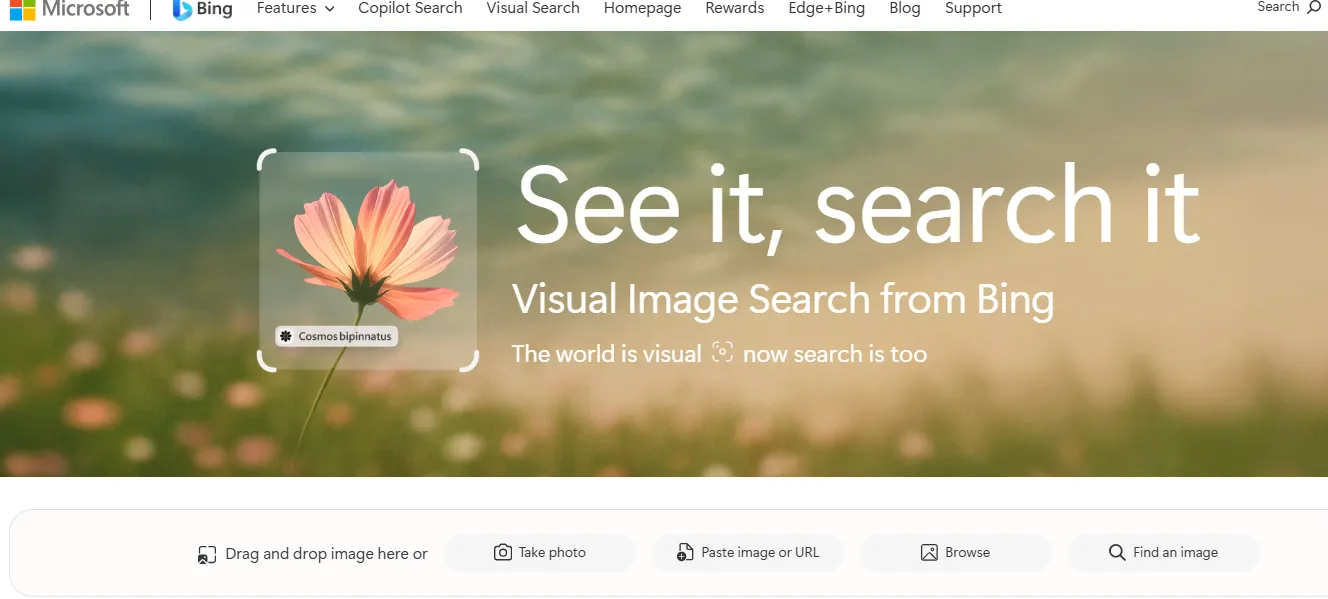
Microsoft’s Bing offers strong visual search capabilities that make it easy to find images, preview videos, and browse products.It also includes seamless integrations with other Microsoft products, such as Windows and Edge. And unique features like points that can be redeemed for rewards like gift cards.
It’s worth noting that Bing’s search results typically contain fewer ads than Google results. They also feel more curated since Bing tends to prioritize informational sources (such as Wikipedia or official government sites) over more commercial websites.
⏩How it Works
Bing uses advanced computer vision and AI to identify objects, text, and scenes within images. In 2026, it is tightly integrated with Copilot, allowing for "Multi-turn Search"—you can upload a screenshot and then ask follow-up questions like "Where can I buy this?" or "What is the history of this building?"
⏩What You Can Search
Using an image, Bing Visual Search can help you find:
- Similar or matching images
- Objects in photos (e.g., items of clothing, gadgets, animals)
- Text within photos (OCR: read & translate menus, signs, homework)
- Shopping results — similar products and where to buy
- Info about landmarks or designs in a photo
- Contextual info linked to visual elements
⏩Key Features
| Feature | Description |
|---|---|
| Intuitive Image‑Driven Search | No need to remember names or keywords — just upload an image. |
| Product Discovery & Shopping | Identify products & find similar items, prices, ratings, and where to buy. |
| Text Extraction (OCR) | Recognizes text in pictures — useful for menus, study problems, or foreign language translation. |
| Multi‑Stage Recognition Pipeline | Advanced AI analyzes visual details and context rather than just matching pixels — allowing for richer, more accurate results. |
| In Apps & Browsers | Available on desktop (drag/upload), phone camera, and browser extensions. |
⏩Subscription Fees
-
Individual Users: 100% Free. Visual search on Bing.com, the Bing App, and Edge remains free to the public.
-
Microsoft Rewards: You can actually earn points by using Bing Visual Search, which can be redeemed for gift cards.
⏩Who Is It Best For?
-
Windows & Edge Users: Because of the Snipping Tool integration, it is the fastest way to search for anything on your desktop.
-
Online Shoppers: If you want to find "the look" from a series or movie.
-
Students & Researchers: The OCR (text extraction) feature is superior for grabbing data from educational videos.
-
Casual Creators: Anyone looking to experiment with AI video generation (Sora) without a complex setup.
4.TinEye: The Original Reverse Image Search
TinEye is widely recognized as the pioneer of reverse image search. Unlike general search engines that focus on "visual similarity" (showing you things that look similar), TinEye specializes in exact match identification. It is the surgical tool of the video search world—perfect for finding the original creator or checking if a clip has been edited.
Instead of typing text, you upload (or give a URL of) an image and it finds where that exact image appears on the web. It uses image recognition and fingerprinting instead of keywords or metadata.
⏩How it Works
TinEye uses proprietary computer vision and image fingerprinting technology. When you upload a screenshot from a video, TinEye creates a unique digital signature (fingerprint) of that image and compares it against its index of over 82 billion images.
⏩What You Can Search
You can submit:
-
An image file (drag & drop or upload)
-
A direct image URL
TinEye then searches its index to find:
-
The same image anywhere online
-
Edited versions (cropped, color‑adjusted, resized)
-
Where the image appears on different sites
Useful for tracking usage, sourcing originals, and identifying altered graphics
⏩Key Features
| Feature | Description |
|---|---|
| Reverse Matching | Finds where your exact image appears on the web (not keyword‑based). |
| Image Fingerprinting | Creates a unique visual “signature” for comparison. |
| Result Sorting | Filters matches by “Biggest,” “Newest,” “Best Match,” etc. |
| Privacy First | Doesn’t store uploaded images permanently. |
| Browser Extensions | Add‑ons let you right‑click images and search instantly. |
| API / MatchEngine | For businesses to integrate TinEye search into workflows. |
| Alerts (Optional) | Notify you when new matches appear (via some plans). |
⏩Subscription Fees
🆓 Free, Basic Use
-
Web version allows reverse image searches for free (non‑commercial).
-
Some resources mention casual free usage limits (e.g., daily caps).
💼 Paid / Commercial Plans (API / MatchEngine)
Paid plans let developers or businesses embed TinEye search & scale usage:
| Plan Tier | Searches Included | Approx. Cost (USD) | Cost/Search |
|---|---|---|---|
| Starter | ~5,000 | ~$200 | ~$0.04 |
| Basic | ~10,000 | ~$300 | ~$0.03 |
| Corporate | ~50,000 | ~$1,000 | ~$0.02 |
| Enterprise | ~1,000,000 | ~$10,000 | ~$0.01 |
| MatchEngine Basic (Monthly) | 30,000 / mo | ~$500 / mo | + overuse fees |
📌 These bundles are prepaid credits (used as you run searches).
⏩Who Is It Best For?
-
Journalists & Fact-Checkers: To verify the "First Appearance" of a viral video and debunk "fake news" re-uploads.
-
Photographers & Artists: To find copyright thieves who have cropped or filtered their work.
-
Brand Protection Teams: To monitor where corporate logos or proprietary video assets are appearing online.
-
Professional Researchers: Who need a "clean" search without the "similar but wrong" results often found on Google.
5.Yandex Images: Best Reverse Video Finder

Yandex Images Video Search is a free online search tool within the bigger Yandex ecosystem that helps you find and watch videos from publicly available sources all over the internet — not just on one platform. It’s a dedicated vertical of the main Yandex Search focused specifically on video results.
You can search videos by keywords/queries (just like regular search) and Yandex returns listings of matching videos with options to play or explore them.
⏩How it Works
Yandex doesn't just "index" videos; it uses a proprietary neural network called MatrixNet (and its 2026 evolution, YandexGPT 3) to analyze the visual components of a frame.
-
Deep Visual Mapping: It is exceptionally good at identifying actors, influencers, and urban architecture. If you have a clip of a city street, Yandex can often tell you the exact intersection.
-
Aggressive Crawling: Yandex indexes many parts of the web that Google ignores, particularly in Eastern Europe, Central Asia, and certain Asian forums
⏩What You Can Search
You can use Yandex Video Search to look for:
- Full‑length TV shows, movies, and web videos
- Short clips and vertical videos (e.g., social clips)
- Series episodes with grouped season/episode convenience
- Videos filtered by duration or source host
- Collections based on popular or trending queries
Basically, any publicly accessible online video that is indexed can show up in the results.
⏩Key Features
| Feature | Description |
|---|---|
| Text‑based video search | Search videos using keywords. Similar to traditional search but tailored to video results. |
| Play inline | Videos can be played directly from search results without leaving the page. |
| Filtering options | Filters include “Short,” “New,” and safe modes (moderate/family). |
| TV series block | For series queries, episodes are grouped by seasons. |
| Related objects & recommendations | Shows related search topics, related recommended videos. |
| Search on specific hosts | Advanced filtering by specifying video hosting sites (like YouTube). |
| Mobile support | Works in mobile browsers; in apps it supports playback features. |
| No upload of videos | You cannot upload your own video to search; only finds videos already |
⏩Subscription Fees
-
completely free.
-
Yandex Search API: For developers who want to build Yandex's power into their own apps, fees in 2026 are approximately $7.50 per 1,000 image/video search requests.
-
Yandex Cloud Video: Professional hosting and AI-summarization services start at roughly $1.50 per month for basic storage and transcoding.
⏩Who Is It Best For?
-
OSINT Researchers & Journalists: It is the industry standard for verifying the location and people in a video.
-
Movie Buffs: To find the name of a film or TV show from a random meme or short clip.
-
Global Users: Anyone looking for content that might be "buried" or censored in Western-centric search engines.
-
Digital Detectives: To track down the original uploader of a video across international borders.
6.PlayPhrase.me: Fun Movie Clip Search Engine
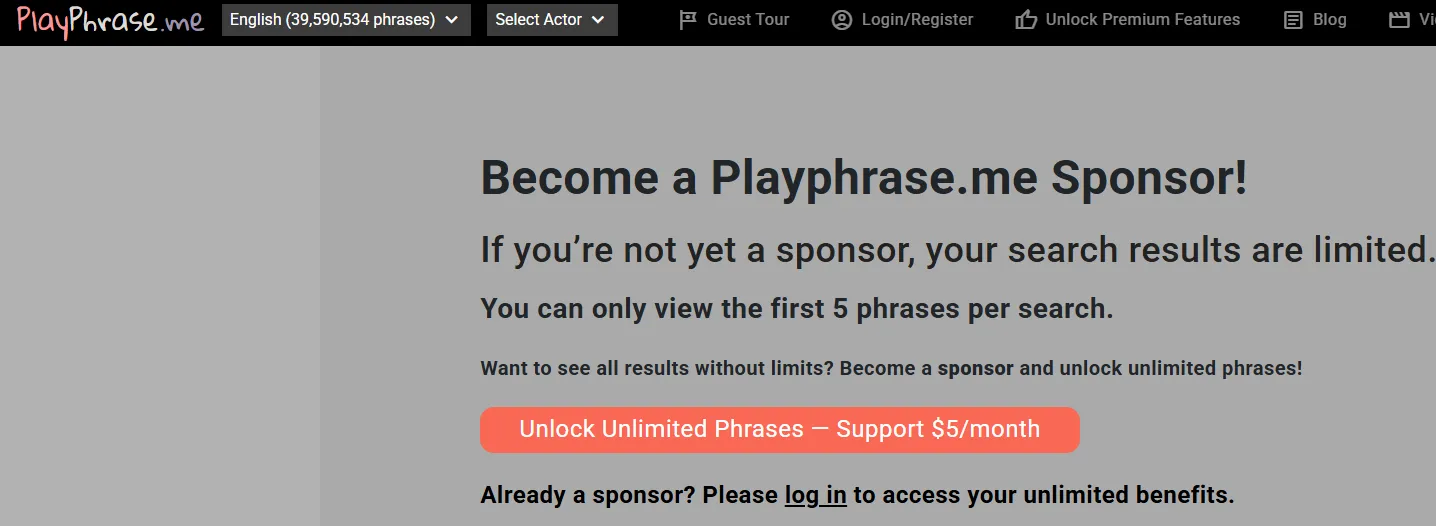
PlayPhrase.me is a specialized video search engine focused on finding real movie and TV show clips that contain a specific spoken phrase you type into a search box. When you enter a phrase or quote, PlayPhrase returns video snippets where that exact line appears in dialogue — and plays them back instantly.
It’s like a conversational “quote‑finder” but for video context — great for recalling iconic lines, learning language in context, or sourcing clips for creative use
⏩How it Works
Enter a phrase, and the tool searches its database of movie and TV show dialogue, returning clips where that phrase is spoken.
⏩What You Can Search
PlayPhrase is designed to find spoken lines and phrases in:
-
Movies
-
TV shows
-
Other scripted video content
Type in any phrase you remember — from “I’ll be back” to more subtle dialogue — and it will return all clips in its database where that exact phrase occurs.
⏩Key Features
| Feature | Description |
|---|---|
| Phrase‑based search | Lets you enter any spoken phrase to find matching video clips. |
| Instant clip playback | Results play immediately in sequence so you can see/hear the phrase in context. |
| Extensive dialogue library | Index covers millions of phrases from movies & TV episodes. |
| Download clips | Allows downloading video snippets for offline use, study, or creative projects. |
| Free access | Basic search is free, with limits per query. |
| Premium access | Optional support unlocks unlimited searches and priority performance. |
| Context & playback tools | Some recent updates let you see more context around phrases and mix clips. |
⏩Subscription Fees
PlayPhrase uses a freemium and sponsorship model:
| Plan Type | Cost (Approx.) | Notes |
|---|---|---|
| Free | $0 | Limited to ~5 clips per phrase query, no account needed. |
| Patreon Premium | ~$3/month or ~$30/year | Unlimited phrase searches, clip saving, faster loading, priority servers. |
👉 Premium support is normally managed via Patreon, and you become a supporter rather than subscribing through a conventional platform
⏩Who Is It Best For?
-
Language learners: Hear natural dialogue in context to improve listening, pronunciation, and vocabulary.
-
Content creators: Quickly find clips for videos, memes, TikToks, or educational content.
-
Film/TV enthusiasts: Find specific quotes or iconic lines without scrubbing through full videos.
-
Educators & teachers: Use authentic clips to illustrate language or cinematic concepts.
7.Peakto: Find Your Original Master Files
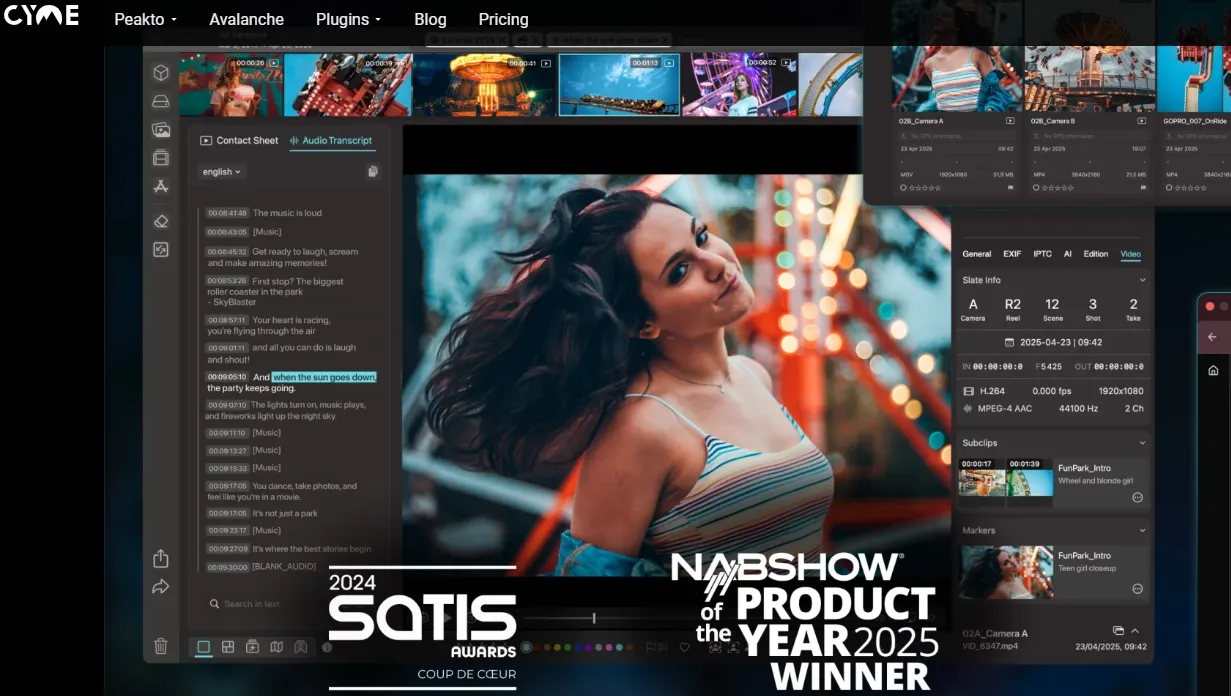
Peakto isn’t a public “web video search engine” like YouTube or Bing — it’s a media management and search tool for local video/photo libraries, designed especially for creators, editors, and photographers. Instead of searching web videos, Peakto lets you search through your own video files and catalogs using AI understanding of content — without manual tagging or prior organization.
It’s a Mac‑centric application (with macOS support and plugins for tools like Lightroom or Capture One) that combines AI media analysis + smart search + organization in one place.
⏩How it Works
Peakto indexes catalogs and projects from Lightroom, Capture One, Apple Photos, Final Cut Pro, and more without moving your files. It creates a global visual inventory that's searchable by content.
⏩What You Can Search
Peakto lets you search within your own video files for:
-
Specific scenes or frames described in natural language
-
Moments matching object, scene, or action descriptions (e.g., “blue car,” “smiling face”)
-
Specific sequences like dialogue parts, visual patterns, or editing cues
-
Clips across multiple catalogs or drives (even offline)
-
Reference‑based search (find similar frames to a sample image)
Instead of typing tags or manually annotating videos, you use plain language descriptions and let AI find matching parts.
⏩Key Features
| Feature | Description |
|---|---|
| Natural Language Video Search | Search video content by describing scenes or actions in conversational language. |
| AI Video Frame Search | Automatically finds relevant sequences in long footage without tagging. |
| Local AI Processing | Analyzes and indexes your videos on your own device — privacy preserved. |
| Video Previews & Navigation | Browse results via scrubber, contact sheet, or full playback. |
| Cross‑Catalog Search | Searches across multiple media catalogs or storage devices simultaneously. |
| Reference‑Based Search | Drop a sample image to find visually similar frames or clips. |
| Editing Workflow Integration | Plugins for Lightroom and Capture One improve search + edit flow. |
| Metadata & Face Search | AI tags and organizes by detected elements — faces, keywords, etc. |
| Timeline & Organizational Views | Visual timelines and organizational tools for multi‑media libraries. |
⏩Subscription Fees
Peakto offers a 7-day free trial and follows a tiered model:
-
Standard Plan (~$10/month or $60/year): Perfect for individual photographers and creators. Includes all core AI search features.
-
Pro Plan (~$25/month): Aimed at studios and professional editors. Includes the Adobe Premiere Pro plugin and multi-user collaboration (Shared Spaces).
-
Lifetime License (~$190 - $270): A one-time purchase for those who prefer to avoid recurring subscriptions. Includes one year of free updates.
⏩Who Is It Best For?
-
Professional Video Editors: Who need to find specific "B-roll" footage buried in terabytes of old projects.
-
Content Creators: Who have footage spread across dozens of external hard drives and "lost" the link to the original sources.
-
Creative Studios: Teams that need a shared, searchable archive without the high cost and privacy risks of cloud-based storage.
-
Privacy-Conscious Pros: Editors who want AI-powered search but refuse to upload their private, unreleased footage to a server.
8.Reverse Video Search App: Mobile-First Solution
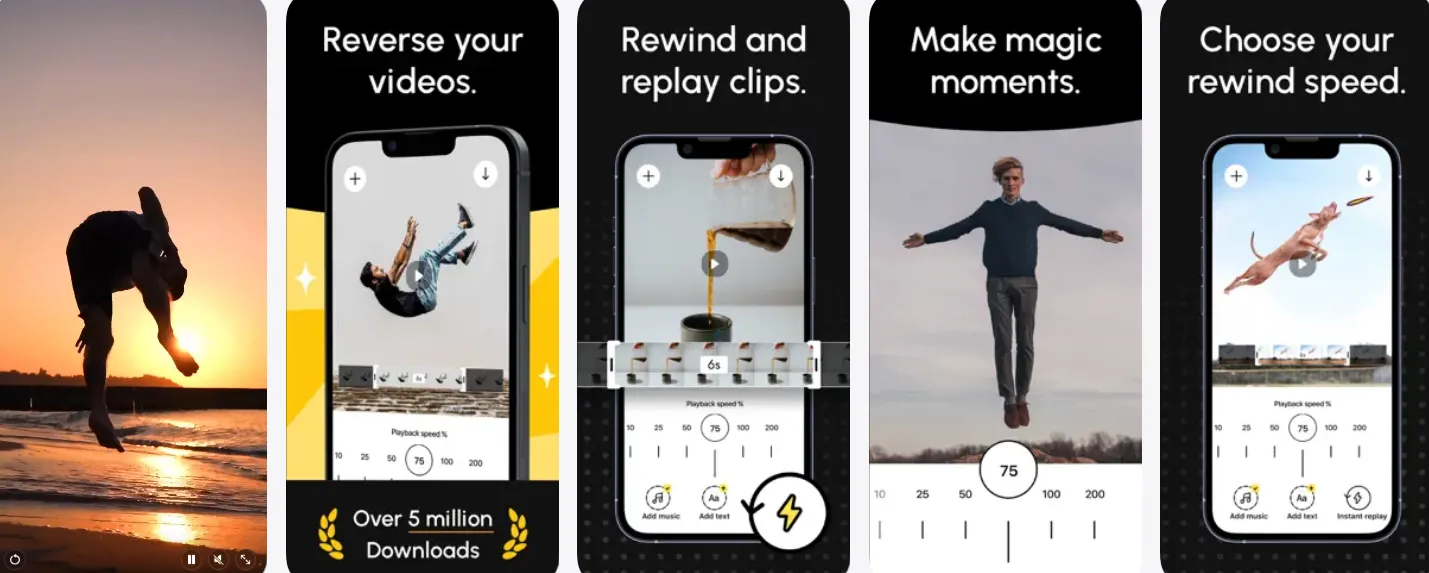
The Reverse Video Search App (e.g., available at reversevideosearch.app) is an online reverse video search engine that helps you trace the origin of a video, locate identical or similar clips, find full versions online, and verify authenticity by analyzing video content frame by frame.
Instead of typing text, you upload a video file or paste a video link from places like YouTube, TikTok, Instagram, Reddit, and other video platforms — and the tool uses AI to search visually.
⏩How it Works
Upload a video clip from your gallery, and the app extracts frames to search for similar content online.
⏩What You Can Search
Using this tool, you can search for:
- Online occurrences of a video clip
- The original source of a viral or reposted video
- Exact matches and visually similar versions (even if slightly edited)
- Duplicates or appearances across platforms
- Full versions when you have only a partial or short clip
⏩Key Features
| Feature | Description |
|---|---|
| Video Upload & Link Support | Accepts both uploaded files and URLs to search visually. |
| AI‑Powered Frame Analysis | Uses AI to scan and match frames against online video databases. |
| Cross‑Platform Search | Searches matches across YouTube, TikTok, IG, Reddit, and more. |
| DeepSearch Mode | Paid option for full video processing for deeper matching. |
| Privacy‑Focused | Uploaded videos are processed temporarily and deleted immediately; not permanently stored. |
| Results with Metadata | Shows thumbnails, original source links, and platform info. |
| Quick & Web‑Based | Works in a browser — no install needed. |
| Free & Paid Tiers | Free basic matching + subscription for deeper searches (DeepSearch). |
⏩Subscription Fees
Most apps in this category follow a Freemium model:
-
Free Version: Includes basic reverse search (usually limited to 3-5 searches per day) with full-screen ads.
-
Weekly/Monthly Pass (~$2.99 - $7.99): Removes ads and allows for unlimited "Pro" searches (faster processing and multiple engines).
-
Annual Subscription (~$29.99 - $49.99): The most cost-effective for heavy users, often including "AI Upscaling" for blurry clips.
-
Free Alternatives: Official apps like Google Lens and Bing are 100% free but lack the "multi-engine" aggregation features of dedicated reverse search apps.
⏩Who Is It Best For?
-
Social Media Managers: Who need to find the original sources of trending clips for proper attribution.
-
Shoppers & Fashionistas: Who want to "snap and shop" products they see in video content.
-
Students & Researchers: Who use their phones as their primary research tool and need to identify video origins quickly.
-
General Users: Anyone who wants a simple, one-button solution to the question, "What video is this from?"
How to Choose the Right Video Search Engine: Selection Guide & Pro Search Tips
Finding videos online seems easy, but choosing the right video search engine can save you hours, improve your results, and help you discover rare content. With hundreds of options — from reverse search apps to platform‑specific engines — knowing which tool fits your need is key.
1️⃣ Define Your Purpose
Start by asking yourself what type of video search you need:
| Goal | Recommended Type of Search Engine |
|---|---|
| Find any public video quickly | General video search engines: Google Video, Bing Video, Yandex Video |
| Search by exact clip or source | Reverse video search apps: Berify, Reverse Video Search App, TinEye Video |
| Search for specific dialogue or phrases | Dialogue‑based engines: PlayPhrase.me, Yarn |
| Manage local libraries with AI | Media search apps: Peakto, Axle.ai |
| Detect unauthorized use of content | Reverse image/video search with tracking features: TinEye, Berify |
📌Pro Tip: Knowing your goal prevents wasting time on engines that don’t specialize in your type of search.
2️⃣ Consider Key Features
When comparing search engines, pay attention to these critical features:
| Feature | Why It Matters |
|---|---|
| Search type | Keyword, reverse image/video, phrase search, or AI content search |
| Coverage | Does it search all platforms or just a single hosting site? |
| Speed & Accuracy | How quickly does it return results? Are matches precise? |
| Filters & Sorting | Duration, upload date, relevance, or safe mode |
| Playback & Preview | Can you watch videos inline, or just see links? |
| Privacy | Is your data or upload stored? Local processing is more secure. |
| Integration | Can it work with other apps, editors, or APIs? |
| Pricing | Free vs. subscription vs. paid API or credits |
3️⃣ Match Engine Strengths to Your Needs
-
General Search Engines – Great for discovery, trending videos, and multi‑platform results. Ideal for casual searches.
-
Reverse Video Search – Best for verification, copyright tracking, and locating original sources.
-
Phrase/Dialogue Search – Excellent for content creation, memes, or learning language through context.
-
Local AI Search Tools – Perfect for professionals managing large video libraries, editors, or creative teams.
📌Pro Tip: Most professional users use a combination of tools: a general search engine for discovery, plus a reverse video search for verification.
4️⃣ Evaluate Ease of Use
-
User interface: Clear navigation speeds up searches.
-
Supported platforms: Browser‑based vs. desktop app; mobile support.
-
Upload options: Drag‑and‑drop, URL paste, or API integration.
-
Result presentation: Inline playback, thumbnails, metadata, or timeline views.
📌Pro Tip: Test free tiers before committing to paid plans; usability varies widely.
5️⃣ Pro Search Tips
-
Use quotes for exact phrases – For keyword‑based engines, wrapping terms in quotes finds exact matches.
-
Leverage filters – Sort by duration, upload date, platform, or quality to narrow results.
-
Combine engines – Search first with Google/Bing for broad results, then verify using TinEye or Reverse Video Search App.
-
Use short clips for reverse searches – Most reverse engines perform better with 5–15 second samples.
-
Keep privacy in mind – For sensitive content, prefer local AI search tools like Peakto.
-
Track results over time – Use alerts (e.g., TinEye Alerts) to monitor new appearances of your videos.
6️⃣ Pricing & Subscription Considerations
-
Free tiers – Sufficient for casual users, but often limited in results or daily quota.
-
Paid subscriptions – Offer deeper search, faster results, and additional features like API access or unlimited searches.
-
Credits/Pay‑per‑use – Some reverse search engines charge based on the number of videos processed (Berify, DeepSearch).
📌Pro Tip: Evaluate cost vs. use case. Professional verification or content monitoring often justifies a paid subscription.
7️⃣ Quick Decision Flow
With so many options, selecting the right tool depends entirely on what you're trying to accomplish. Use this chart to match your needs with the perfect solution.
| If You Need To... | Your Best Match | Why |
|---|---|---|
| Find where a viral video came from | Google Lens / Berify | Largest index + multi-engine search for thorough coverage |
| Check if someone stole your video | Berify / TinEye | Continuous monitoring and exact match focus |
| Find your original master file from a low-res clip | Peakto | Local media indexing and cross-app search |
| Identify a movie scene from a screenshot | Google Images | Largest database of movie frames and thumbnails |
| Find a movie by mood or emotion | Cinesearch | Emotional search across 500+ streaming services |
| Search inside your company's video library | EnterpriseTube | Semantic search, object detection, OCR for business content |
| Find where a specific phrase was spoken in a movie | PlayPhrase.me | Specialized dialogue search |
| Build your own video search app | TwelveLabs / NVIDIA VSS | Developer APIs and blueprints |
| Search videos on mobile while traveling | Reverse Video Search App | Mobile-first with voice and URL options |
| Find podcast moments from top experts | Dexa | Podcast transcript search with timestamps |
✅ Final Thoughts:Choosing the right video search engine boils down to purpose, features, and workflow compatibility. Whether you’re a casual viewer, content creator, journalist, or media professional, combining general search engines with specialized tools usually gives the best results.